AdGuard Home: subscribe, update, and verify
This page assumes AdGuard Home is installed and you can open its admin UI. If not, start with the official getting-started guide.
Prepare
Write down your current DNS setup (router DHCP, upstream DNS, existing allow rules) so you can restore it. Try one device first before rolling it out to the whole network.
Add the subscription
Pick one of two ways. The first is recommended: it offers all four profiles and follows the rule repository's releases directly.
Option 1: subscribe to the project repository (recommended)
- In the subscription builder, choose AdGuard and a profile, then copy the official source (GitHub Raw) link. Use a fallback only if GitHub is unreachable.
- Open Filters → DNS blocklists and click Add blocklist → Add a custom list.
- Enter a recognizable name, paste the link, and save.
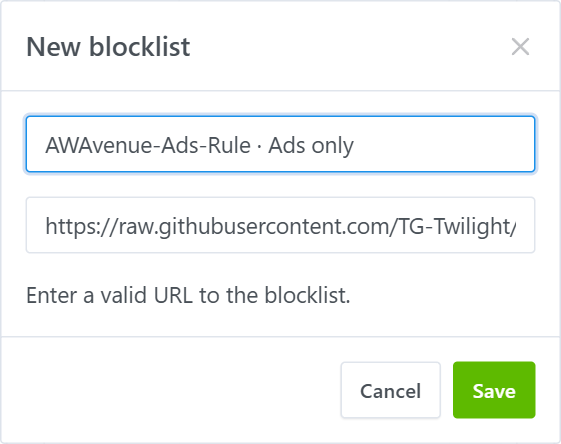
If you previously ticked the built-in AWAvenue Ads Rule, disable it, or you'll still get the full profile even after switching to ads-only.
Option 2: tick the built-in list
- Open Filters → DNS blocklists.
- Click Add blocklist → Choose from the list.
- Under General, tick AWAvenue Ads Rule and save. This is AWAvenue Ads Rule; no link needed.
Show the built-in list screenshot
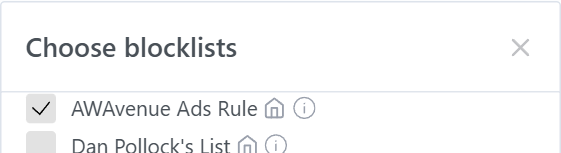
The built-in entry is the full profile redistributed by AdGuard. It has only that one profile and updates a little later than the repository.
After adding
The list should be enabled with a non-zero rule count. Also make sure Block domains using filters and hosts files is on under Settings → General settings.
Update
Click Check for updates on the DNS blocklists page to download again. Change the automatic update interval in Settings → General settings.
If a download fails, check that the machine running AdGuard Home can open the link. If it can't, copy a fallback source for the same profile from the builder and edit the existing entry instead of adding another one.
Point your devices at AdGuard Home
Set each device's DNS to AdGuard Home's LAN address, or hand it out through your router's DHCP. Change the IPv6 DNS too, and don't add a public DNS as a "secondary" — devices often use it anyway.
Browser "secure DNS" and Android "Private DNS" bypass AdGuard Home; turn them off while testing.
From a computer you can test like this (replace 192.168.1.2 with your AdGuard Home address):
nslookup example.org 192.168.1.2
nslookup example.org
Both should show up in the Query log. If the second doesn't, that device's DNS isn't pointing at AdGuard Home yet.
Check that blocking works
Look up an ad domain from the list, plus a normal domain for comparison:
nslookup ad.doubleclick.net 192.168.1.2
nslookup example.org 192.168.1.2
The first should show Blocked in the query log. Hover the question mark in the Response column to see the matching rule and list name.
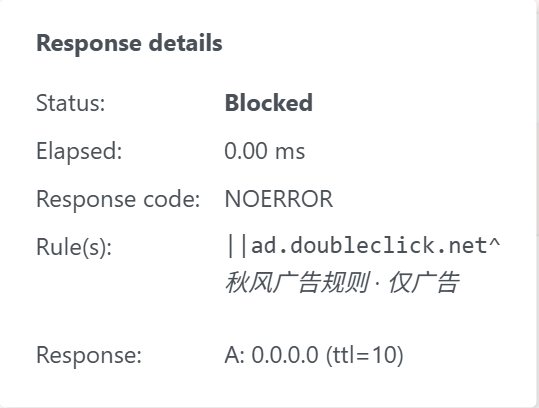
If results don't change after editing rules, it's usually cache: clear the DNS cache in AdGuard Home and on the device, then retry.
False positives and removal
Disable AWAvenue Ads Rule and retry the action that broke. Once confirmed, click Unblock on that entry in the query log; AdGuard Home adds an exception under Custom filtering rules. You can also write one yourself, such as @@||needed.example^ (with the real domain). Only allow the domain you confirmed.
To remove it entirely, delete the subscription and any exceptions you added for it, then restore your devices' or router's original DNS.
DNS filtering can't block ads served from the same domain as the content, and it can't remove the empty space left behind. For AdGuard installed directly on Android, see this guide.